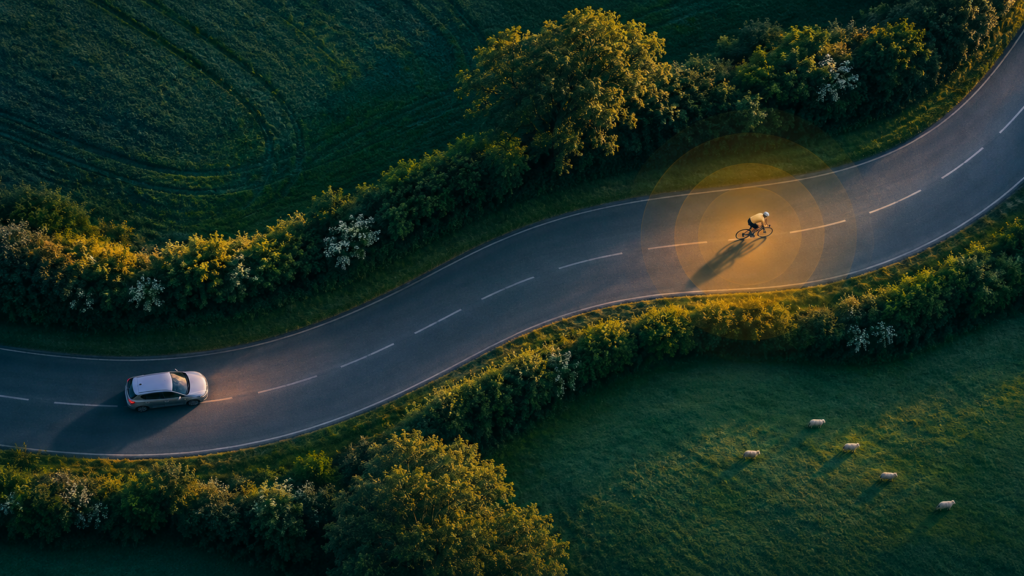
Waze can now warn drivers when they’re approaching a cyclist who has chosen to share a ride from a compatible Garmin. The rider appears as a moving bicycle icon, and Waze can show a pop-up and sound an alert as the driver approaches. Garmin announced Live Cycling Alerts on November 10, 2026, when Waze began rolling them out on Android and iOS.
Already use a compatible Garmin on country-road rides? My default is to opt in if you’re comfortable sharing your position with nearby drivers: it adds another way to be noticed without another hardware purchase. Keep it off if you want to share only with people you invite. For drivers, leave cyclist warnings on and make changes while parked.
| Situation | What matters | What to do |
|---|---|---|
| Garmin rider | Compatible Edge or watch, Waze opt-in | Check LiveTrack in Garmin Connect |
| Cyclists menu missing | Rollout and country availability vary | Update Waze; check again later |
| Phone left at home | Integration uses a connected phone | Bring the paired phone with data |
| Icon appears without a voice alert | Separate map and driving controls | Check Alert while driving |
| CarPlay or Android Auto | Controls live on the phone | Disconnect before changing Waze settings |
| Test ride in town | Urban areas are excluded | Expect no urban alert |
How to share a Garmin ride with Waze
The rider needs a compatible Edge bike computer or Garmin watch, a paired phone running Garmin Connect, and an outdoor cycling activity. Waze permission and a running LiveTrack session are separate requirements. Bring the paired phone on the ride.
To start a session manually, use the LiveTrack controls in Garmin Connect and enable Waze sharing.
- Open Garmin Connect → More → Safety & Tracking → LiveTrack. If more than one Garmin is paired, select the one you’ll use for the ride.
- Look for the choice to share your LiveTrack location with Waze and opt in if you want to appear to nearby drivers. That choice lets Waze show your position to nearby drivers.
- Choose Start LiveTrack for the selected device, then start recording an outdoor cycling activity on the Garmin. Wait for a GPS fix and bring the connected phone with mobile data.
- When finished, end the ride on the Garmin to stop the Waze alert.
Use Auto Start for regular rides if your device offers it. Manual start is the better choice when you want to choose which sessions to share. Auto Start launches LiveTrack with a supported activity, saving a pre-ride phone step.
For a concrete compatibility check, take the Edge 1050. Its Connected Features → Phone → Pair Smartphone setting enables Bluetooth features including LiveTrack. That establishes ordinary LiveTrack support. An owner should then look for the Waze sharing choice in Garmin Connect. A shopper should confirm Waze compatibility before spending money on the computer.
Standard LiveTrack is free, and the announced Waze integration adds no subscription requirement. The integration delivers alerts in Waze and uses location data from supported Garmin devices. Keep your current hardware unless you have another reason to replace it.
Where drivers turn cyclist alerts on or off
Open Waze on the phone and follow Menu → Settings → Alerts and reports → Reports → Cyclists. Two switches control the map and driving warnings separately.
- Show on map puts the cycling alert on the map. Waze depicts an eligible rider with a moving bicycle icon.
- Alert while driving controls the spoken alert and the pop-up. Leave this on so the warning does not depend on watching the map.
In Garmin’s launch image, the blue driver arrow is on the purple route, a yellow bicycle icon sits farther up the road, and a “Cyclists ahead” banner appears at the bottom. The distance at the top belongs to the next turn. The image shows what to look for on screen and gives no distance between the car and the rider.
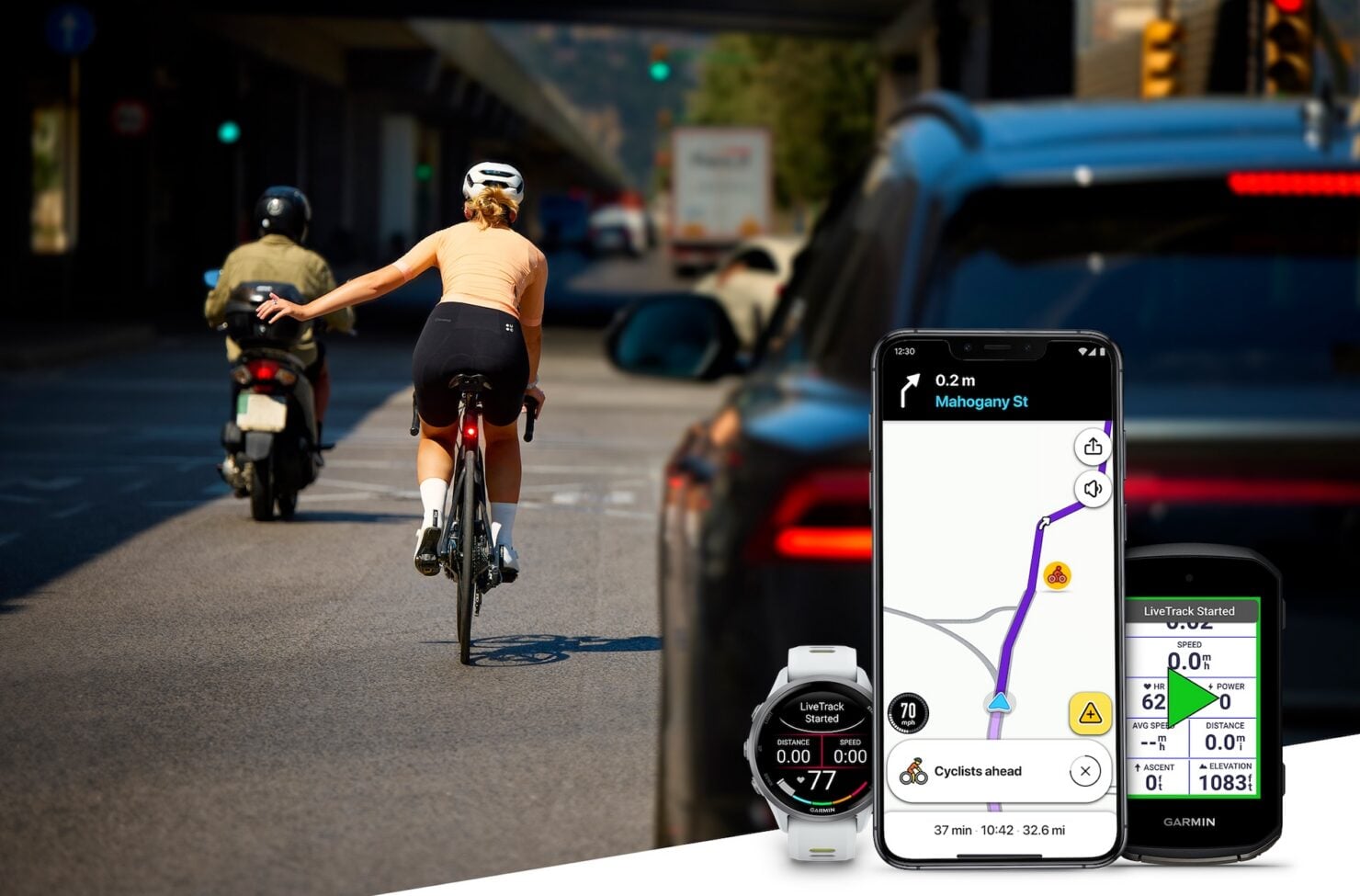
My default is to keep both switches on. If you find the map too busy, turn off the map display while retaining driving alerts. Glance at the screen only when safe; keep your attention on the road.
If you use Android Auto or CarPlay, disconnect the phone first and change the switches in the phone app while parked. Those changes carry over to Waze in the car.
Because the bicycle icon moves with the rider, Waze gives drivers and map editors no way to add it by hand or remove it from everyone else’s map. Use your own switches if you want fewer prompts.
Where alerts work, and why a quiet screen proves little
The Android and iOS rollout began globally on November 10. For readers in the US, UK and Europe, availability can vary by country. Alerts target rural and high-speed roads, exclude urban areas and may be unavailable in some countries. A country-road ride that continues into town can therefore lose eligibility even with a working Garmin setup.
If the Cyclists category or Garmin’s Waze choice is missing, update the relevant phone app and check the selected Garmin device. If it is still absent, wait rather than buying a replacement. There is no published country timetable, Waze-specific model list or minimum app/firmware version to use as a universal checklist. Ordinary LiveTrack on an LTE-equipped watch does not establish phone-free support for this integration.
The location travels through the rider’s phone and online services before reaching the driver’s Waze app. Loss of mobile signal can interrupt LiveTrack updates. Waze’s warning distance, update delay and behavior during a connection gap are unspecified, so do not plan around a fixed number of seconds or yards.
Garmin puts Waze’s worldwide audience at 200 million drivers. A driver still needs to be using Waze to receive a warning, so that worldwide audience cannot tell you how many drivers on your road will see you.
A warning on a narrow country lane is a cue to ease off and look for a bike beyond the bend. A quiet screen calls for the same lookout: riders without compatible devices or without sharing enabled produce no alert. Neither a rider nor a driver should treat the feature as confirmation that the other person has been warned.
Garmin Varia serves the rider by warning about approaching traffic from behind; Waze flags the cyclist for the driver. Keep using rider-side radar if you already rely on it. This launch does not replace that warning with a signal on your Garmin.
Who can see where you are?
A nearby driver sees a temporary moving icon and alert without your identity or route. Your usual LiveTrack link has a different audience. People you send the link to can follow the session and see the information available there, which can include your position, speed and planned course. You can use that ordinary LiveTrack feature without opting in to Waze.
At a café stop, end the outdoor activity on the Garmin if you want the Waze alert to stop. Waze confirms that cutoff at the end of the ride. If you leave the activity paused for the trip home, its public documentation gives no separate cutoff for the pause.