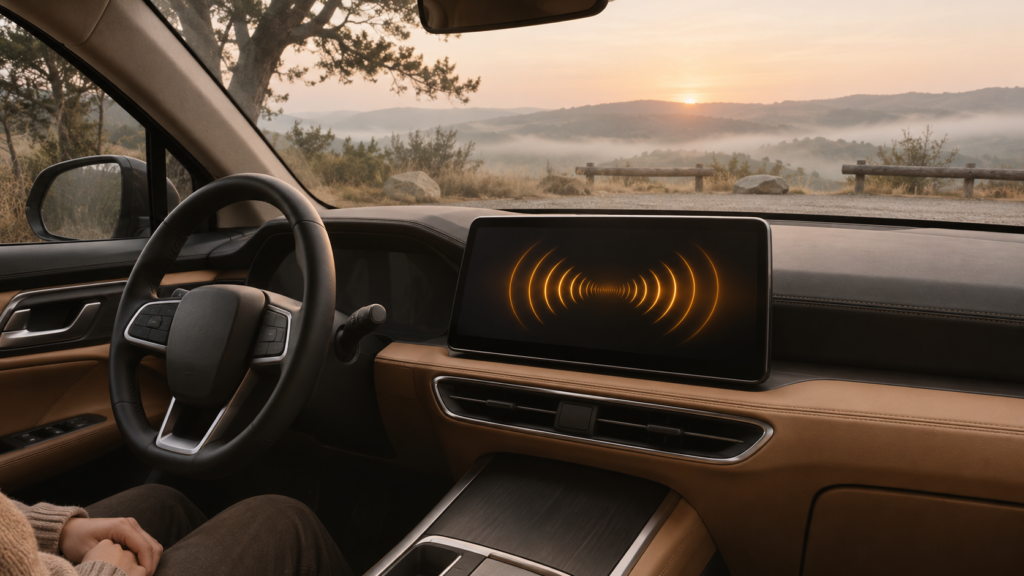
Google started rolling out the standalone Gemini app for Apple CarPlay on November 11, 2026. It lets you start or resume a Gemini Live voice conversation from the dashboard. The iPhone app update followed on November 12. If CarPlay already works in your car, start by opening Gemini Live on your phone while parked. That first session is part of the setup.
For existing Gemini users, the sensible first step is to try the voice chat you already use on the phone. Keep navigation in Maps and familiar CarPlay commands with Siri. You do not need to buy a subscription just to try this integration: the launch covers all Gemini users on iOS.
| What you see or need | First step |
|---|---|
| Live hasn’t been used on this iPhone | Update Gemini and try Live while parked |
| Gemini Live can’t hear you | Check the iPhone’s microphone permission |
| Live works, dashboard icon is missing | Check the car’s Customize list |
| You want to change your route | Open your navigation app |
| Live works, Gmail answers don’t | Check the signed-in account and connectors |
How to get the Gemini icon on CarPlay
Use the iPhone you normally connect to the car. The same Gemini app from the App Store supplies the CarPlay icon. Access covers every supported Gemini Live language. The rollout covers the US, UK and Europe; access can arrive at different times across accounts. The app is free to download, with optional in-app purchases. Daily Brief has separate regional rules, explained below.
- Update Gemini in the App Store and sign in on the iPhone. Gemini Live accepts a personal Google account or an eligible work or school account.
- Open Gemini, tap Live and follow the prompts. Allow microphone access and ask a short question so you know it heard you and answered. If you previously declined access, find Gemini under Settings → Privacy & Security → Microphone.
- Connect the iPhone to CarPlay again. Open the Gemini icon on the CarPlay screen or side rail. The app gives you a choice between starting a conversation and resuming a recent one.
The App Store lists iOS 18.2 as the minimum for the iPhone app. CarPlay’s voice-based conversational app category requires iOS 26.4 or later. So a phone can run Gemini Live on its own screen and still have software too old for that CarPlay category. Google asks for the latest Gemini app and gives no separate minimum CarPlay build. Open Settings → General → Software Update to see the installed version and available updates. For example, an iPhone on iOS 18.2 meets the app requirement but falls short of the CarPlay category’s iOS 26.4 floor. Update the phone before chasing account or dashboard settings; buying a Gemini plan will not fix an OS mismatch.
What to check when Gemini is missing
If other apps show up on the dashboard, open Settings → General → CarPlay → your car → Customize on the iPhone. Look for Gemini among the apps you can add and place it near the start if you plan to use it regularly. Tap the add button if Gemini is listed, then reconnect the iPhone so the new arrangement appears. Check the dashboard’s app pages again. A voice app may be on a later page even though its icon is absent from the first one.
If you can’t start Live on the phone, solve that first. Check the account and microphone, then try a plain voice question without Calendar or Gmail. If Live responds on the phone, iOS meets the category requirement and Gemini still does not appear after the app update and reconnection, a delayed rollout remains a possible explanation. There is no published completion date for each country or account. Re-pairing the entire car is a poor first response while the rest of CarPlay is working. If CarPlay itself never connects, follow Apple’s CarPlay setup for your wired or wireless connection first.
What a conversation looks like on the dashboard
The CarPlay launch screens show a New Conversation control and a voice screen with a Listening state, Mute and End. You talk and hear replies through the car. You can interrupt to add a detail or change the subject, then end the session when you want to focus elsewhere. Start with a fresh chat if you want a clean slate. Open a recent one when the details are already there.
One official example asks for help with a 10 a.m. design-team meeting: tap Gemini, choose a conversation and ask for help preparing for the meeting. The interaction stays spoken. You can interrupt with another detail, then find the conversation in the iPhone app after parking. Use a new chat for rehearsal based on details you supply. Connect Calendar when you want Gemini to look up your agenda or discuss when to leave for an appointment instead.
The same voice flow can summarize unread Gmail messages or a long thread for an eligible connected account. You can talk through a draft reply, then review and send it from your email app when parked. For practice without inbox access, try rehearsing a difficult conversation, asking Gemini to challenge your presentation as a skeptical manager, or having it explain a subject you want to understand. Those are conversation tasks, so they are a better first test than a request for private calendar information.
Which app should you use for directions or car controls?
Open your navigation app to set a destination or change the route. The dedicated Gemini app can suggest places or explain a landmark; use Maps when the suggestion needs to become a stop. The Gemini control inside Google Maps is part of the navigation screen. If that control is available on your dashboard, use it in the navigation screen; otherwise, use the regular Maps controls.
For music playback, calls and familiar CarPlay commands, keep using Siri or the usual dashboard controls. The Gemini iPhone app does not support iOS device actions such as setting alarms or sending SMS directly. Tap Gemini to start the conversation. Use the steering-wheel voice button for Siri. Use the vehicle’s own controls for its air conditioning.
Check your account before asking for Gmail or Daily Brief
For personal Gmail or Calendar access, first open Gemini on the iPhone and use Menu → Customize → Connectors. If Customize is hidden, tap More first. Open the relevant app to check its supported actions, tap Add to connect it and follow the prompts. Use the same account as your mailbox or calendar. Connected Apps on iOS require Keep Activity to be on; leave private apps disconnected if all you want is brainstorming.
A work Gmail account is a different case. In Live chats, work and school accounts currently support only Calendar, Keep and Tasks. Gmail access in ordinary Gemini chats does not establish that it will work in Live. Those supported connections also need a qualifying Workspace edition, administrator permission and Keep Activity. If work email fails while an ordinary voice question succeeds, use Gmail directly when parked.
Daily Brief has an extra switch and its own availability rules. It has to be enabled first, and Google excludes users under 18 and users in the European Economic Area and Nigeria from that feature. The UK is outside the EEA, so that particular regional exclusion does not apply there; the age rule still does. A failed Daily Brief request in the EEA does not by itself mean that ordinary Live chat is unavailable. Test a direct Gmail or Calendar request separately with an eligible connection. Keep account troubleshooting on the phone, where you can see the settings and decide whether to connect those apps.
Before relying on a spoken email summary or meeting time, check the underlying message or event when parked: Gemini can give an incorrect answer or use an older email. If the conversation competes with your attention, end it with the dashboard’s End control.