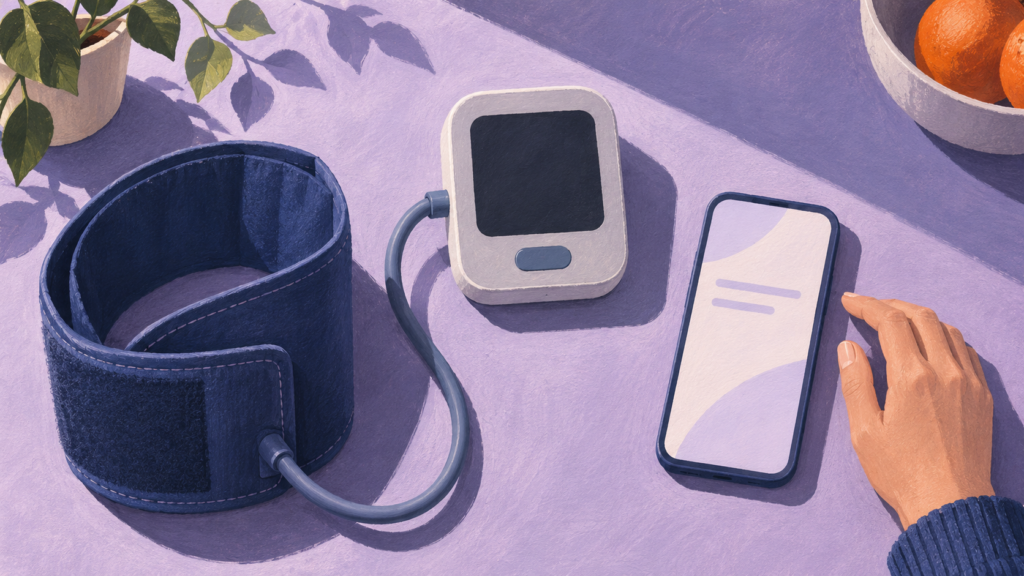
Google Health can now keep a log of the readings you take with a blood pressure cuff. The 5.12 update for Android and iPhone, which began rolling out November 6, adds manual entry and can import readings from Apple Health or Android’s Health Connect. Start with manual entry if your cuff has no app. If its app already sends blood pressure readings to your phone’s health service, use the import route below.
Search for Google Health (Fitbit) in your phone’s app store. The name changed from Fitbit earlier this year. Google is releasing 5.12 in phases over about a week, with timing depending on carrier and device. Check the app’s version information before digging through the new menus. If the store still offers an older version, wait for the regular update.
Pick the route that matches your cuff
| What you have | Where to check | What to do |
|---|---|---|
| Cuff display or paper log | Google Health, Today | Tap + Log, then Blood pressure |
| Cuff app, iOS 26.6 or later | Apple Health, Blood Pressure | Allow Google Health to read it |
| iPhone below iOS 26.6 | Google Health, Today | Use manual entry for now |
| Cuff app on Android | Health Connect, See all entries | Cuff app writes; Google Health reads |
| Pixel Watch trend only | Health Guardian | Use a cuff for a numerical reading |
Enter a reading and find it in Heart
Keep the cuff display in view. In Google Health, open Today, tap + Log and choose Blood pressure under Log manually to enter the reading and measurement details, then tap Save. Open Heart in the Health tab to find the blood pressure graph. You can use the Today and Health tabs even without a paired Fitbit or Pixel Watch. Use the form for a straightforward cuff log; you don’t need Coach for this route.
Already use Premium Coach? Open Ask Coach and type “Record my blood pressure today of 120/80,” replacing the example numbers with your actual cuff reading. Coach confirms the entry and returns a blood pressure log tile. Check the tile before leaving the conversation.
A Pixel Watch 3 owner running Google Health 5.12 has a separate feature to distinguish: Blood Pressure Trends, supported from app version 5.09 on compatible hardware. It uses pulse and motion patterns over about a month to estimate High or Not high, rather than produce a numerical measurement. For the numbers from this morning’s cuff, use the new log. A Not high trend does not override a high cuff reading.
Check both sides of an automatic import
First find a reading in Apple Health or Health Connect. Pick one you can recognize by its date and time. A number that shows up only in the cuff maker’s app has yet to reach the service Google Health reads from. Fix that connection first. Found it? Check that Google Health can read the blood pressure category. An existing connection for steps may need a separate permission for blood pressure.
iPhone
Blood pressure import needs iOS 26.6 or later. The broader Apple Health connection starts at iOS 16.4, but that lower requirement does not cover blood pressure syncing. Check Settings → General → About for your iOS version; use manual entry if it is below 26.6 and the app has updated to 5.12. Connecting Apple Health also requires an adult Google Account and an internet connection.
In Apple’s Health app, open the Blood Pressure category and look for the reading. Data Sources & Access shows which apps have contributed to that category. If the cuff app is missing, open it and check its Apple Health sharing settings. A cuff app can support Apple Health and share only selected metrics.
For a first connection, go to Connections → Apps and services → Apple Health in Google Health, then tap Get started and follow the consent screens. Choose blood pressure access if that’s all you want to share. With a connection already in place, use Sharing → Apps → Google Health in Apple’s Health app to review the permissions. Look for an alert about new data types if the category is missing. Imported data is stored in your Google Health account. If you reinstall Google Health, you’ll need to reconnect it to Apple Health.
Android
Check that the Play Store offers 5.12 for your phone. You also need an adult Google Account to connect Google Health to Health Connect. Open Health Connect and go to Data and access. Find the blood pressure data type and tap See all entries to check what the source app wrote. Then check App permissions. The cuff app needs permission to write blood pressure. Google Health needs permission to read it. Grant the category you came for and review any separate requests for historical or background access.
If this is your first connection, open Connections → Partner apps → Sync your favorite health apps in Google Health and tap Set up. For an existing connection, Connections → Partner apps → Manage Health Connect shows the last sync and offers a manual sync button. The latest records come over first, so test with a recent entry before judging whether your older log has transferred.
Check the same date and time under Health → Heart. If the source entry is present but the destination is empty, review the blood pressure read permission and connection status before adding a manual copy. Available metrics depend on the linked app; blood pressure imports have no guaranteed arrival time. If your cuff app has no way to write blood pressure to your phone’s health service, stick with manual entry.
Glucose graphs can now show what you logged around a reading
Under Health → Metabolic Health, the updated glucose graph can put exercise, sleep and food events on the same timeline as glucose. If you’ve logged lunch and want to see where it fell on the graph, look for the meal alongside your readings. You can also add an event from the graph itself. For a shorter path to the log, add Glucose to Key metrics from Health → Customize.
Food logging has a related change. Individual items logged in the same 60-minute window are grouped. If you log your sandwich and drink together, look for them under one meal group when you go back to check your entries.
Pregnancy logging, medical records and Resilience
Log a pregnancy in Cycle Health settings and the cycle screen switches to weeks of pregnancy. Standard cycle predictions and period reminders pause automatically. Eligible Premium subscribers can log through Coach chat instead and get pregnancy-specific coaching and feed insights. Use Cycle Health settings if all you want is the change to the calendar.
For records in England, go to Profile → Medical records, choose NHS Records (England) via Patients Know Best and review the sync permissions. The connection covers many GP practices and a growing number of hospitals and other secondary care providers. Your Patients Know Best record may contain only part of your history. For a complete or official copy, ask the provider that holds it. If you use Function Health, search for it separately in Medical records setup to import its lab results. Use that route if you want those lab results alongside your other health data. For a cuff log alone, leave medical records disconnected. The NHS option is specifically for records in England; readers elsewhere in the UK, in the US or in the EU should check their own provider in Medical records setup.
If your Daily Resilience score was stuck on Low, check recent days first. A server-side fix went out October 29 after a bug pushed some scores down from May through late October. The 5.12 release notes also say affected historical scores will be corrected. If new daily scores remain stuck on Low, report that through the linked support thread. Premium subscribers who already use a Coach fitness plan can find the new progress summaries in Fitness. Coach access requires a paired Fitbit or Pixel Watch, Premium, an eligible country and an account holder over 18; the progress summaries also need internet access. Check availability in the app before subscribing for Coach.
Before putting the cuff away, find the new entry under Heart and compare both numbers with the monitor. For an import, match the timestamp too. Keep your existing cuff log until you have confirmed that the route you chose records the readings you need.