
WHOOP launched Humans on November 12, 2026, bringing direct following and photo Moments to its app. Followers can see the workouts and health stats you choose to share. If you already use a small WHOOP Team, some of those people will follow you automatically, so review your audience before posting.
For most members, the sensible starting point is a few trusted followers and only the data you have a reason to share. A training partner might find your Recovery useful when planning tomorrow’s session. That doesn’t mean they need your sleep breakdown every morning. Check the actual sharing switches rather than assuming all your daily metrics start private.
| Your goal | Action |
|---|---|
| Check inherited Team connections | Review followers in Humans; remove unwanted connections |
| Stop new requests through search | Make yourself unsearchable |
| Keep Sleep or another metric private | Disable that category in Privacy Settings |
| Pause shared health and performance data | Enable Stealth Mode |
| Save a photo Moment privately | Select Just you, then Done |
| Protect a home-starting GPS route | Keep that workout type unshared |
Who can follow you in WHOOP Humans?
New follow requests need your approval. Existing small-Team connections become reciprocal follows automatically. Those teammates already shared data through their Team. The change carries their connection into Humans rather than asking you to approve everyone again.
Open Humans in the navigation bar, where Community used to be. Incoming follow requests appear there for you to accept or decline. Search for someone and send a request of your own. Once they accept, open their profile for the metrics and trends they share. Following works in one direction, so sending a request doesn’t by itself give that person access to your data.
Remove anyone you don’t want in your follower list. Making yourself unsearchable stops people from finding you and sending new requests. Keep discovery on if you want friends to find you, and switch it off if you’d rather initiate connections yourself.
Teams and their leaderboards are farther down the Humans tab, below the people you follow. Open the follower list to see exactly which teammates carried over. Group membership alone does not tell you which neighbors in a leaderboard can open a Moment on your profile.
Do you need a new WHOOP or a pricier membership?
No. Humans is included across membership tiers at no additional charge, and the reported global rollout supports WHOOP 4.0, 5.0 and MG. For existing members in the US, UK and Europe, check the app you already use. If your app still shows Community, check your app store for an update before spending money on a different band or subscription.
If the friend you want to share with doesn’t use WHOOP, don’t buy them a wearable membership just for this feed. Send the photo through your usual messaging app instead, choosing any stats you want to include. Humans makes more sense when both people already use WHOOP and want ongoing fitness updates.
What can followers see in a shared workout or stat?
You choose which metrics to share: Recovery, Strain, Sleep, heart rate variability and resting heart rate. There are also controls for workout types and achievements. Followers can react to and comment on shared data. A low-Recovery day could be a useful signal to a training partner to suggest an easier session; enable Recovery if you actually want that conversation.
Open a card before deciding to share its category. A Sleep story includes hours versus needed, consistency and efficiency. A workout story shows the Strain it added and time in heart rate zones. Sharing a score can therefore reveal more than the headline number.
If your regular run starts at your front door, inspect the map before sharing. WHOOP’s launch images show a route map on a workout card. Keep that workout type private if the route reveals a location you want to protect. Check the audience on the specific item before you count on any narrower control.
Activities designated sensitive are excluded by default. Health alerts and medical information are excluded from Humans, according to WHOOP’s CEO.
How do you save a Moment just for yourself?
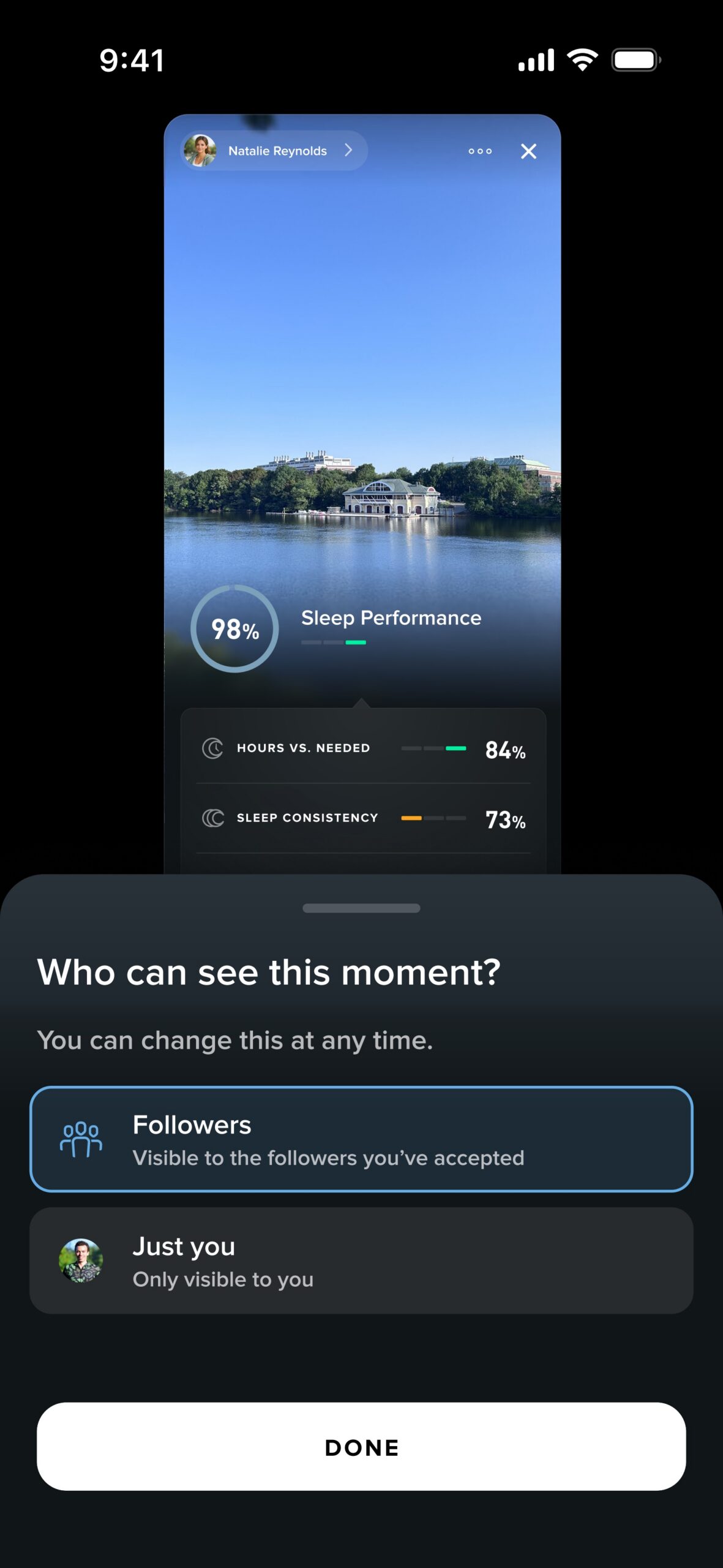
Choose Just you on the Moment’s audience screen, then tap Done. A Moment pairs a photo and note with an activity, Achievement or daily score, and stays private until you choose to share it. You don’t need to join a Team or find followers to use it as a personal training diary.
- Open an activity from Home → My Day, an Achievement on your WHOOP profile, or a Sleep, Recovery or Strain score on your profile in Humans.
- Tap the star icon and choose Create Moment. Add your photo and note. See the official Moments walkthrough for the entry points.
- Check both the attached data and the audience. Followers shares the Moment with your accepted followers; Just you keeps it for yourself. You can change the audience later.
WHOOP’s audience-picker demo shows a lake photo with 98% Sleep Performance, 84% hours versus needed and 73% Sleep Consistency. If you like the photo but don’t want followers seeing those sleep figures, select Just you. Choosing Followers shares the card with the attached figures.
When should you use Stealth Mode?
Use Stealth Mode for a temporary pause in shared health and performance information. It preserves your sharing preferences, which is useful when you want a break without rebuilding your settings afterward. For a lasting change, disable the relevant metric or workout type instead.
The limits worth checking before you share
The small-Team migration has no published headcount cutoff, and the global rollout has no published country-by-country completion dates or minimum app build. The launch guide also doesn’t establish separate metric menus for each follower, a route-only hiding switch, or whether Stealth covers old Moments, comments and Team leaderboards. For those cases, inspect the specific item’s audience and Team settings rather than relying on the general pause switch.
The feed draws on measurements from members’ wearables. It has workout cards, stats, photos and comments. If you just want to send a quick note without attaching any data, use the messaging app you already share with that person.
Before settling into regular sharing, ask one trusted follower to open a deliberately shared item and tell you which scores and location details appear. Compare their view with what you meant to show. If there’s more detail than you wanted, change that item’s audience or disable the relevant sharing category before posting again.